Sharing passwords is bad for security. Period. It is much better, as we cover in the new course,WordPress security with confidence, that you create a new account for each user. If each user have just the rights they need, and every account has a good password, you’re better off than you are by sharing a secure password with everyone securely.
Why? Great question. It comes down to control and auditing. If you kick Sam our of the group, you can just disable his account. If Jenna goes rogue and tries to ruin your site, with her own login you can tell it was her. Both of those are useful features, and you simply don’t get them with a shared login.
That’s why you should make individual accounts for every user on your WordPress site. This steps explains how to create account:
1. Go to “users > Add New” In the left menu on your WordPress site.
2. Give the account a user name and email address.
3. If you need/want, set a password, if you’re not sure, don’t.
4. Choose the role that the user account needs. Based on the principle of the least access, it’s essential that you give that user a role that has just the capabilities they need and no more.
5. Click ‘add new user’ if everything configured correctly, the user will get an email inviting them to log in to their new account.
Nowadays, most of the people are not happy with their 8 am to 8 pm job and their constant salary. people want to earn money easily at home without doing any hard labour.
For this type of earning their is only an option remains i.e. online earning. For easiest way to online earning I will prefer Blogging.
Today in this blog we will know how to create a blog site on Blogger. Follow the steps given below to create a blog site on blogger –
If someone is bothering you is the unknown number. And you can not find him if this website to any mobile number you can get all the information regarding the validity and number only 1 second,
1. You can simply copy paste the phone number in the trace box. Phone number can have STD number with/without leading zero, spaces, hyphens(-) etc.
2. Have covered all the telecom operators in India including private operators like TATA , Reliance etc.
3. For real phone numbers, this tracer give 100% accurate information upto city/town.
4. Working towards Providing the registered person name and and address of the phone number.
The android verses iphone debate continues to rumble on. But one thing is certain: Google’s phone Software is more versatile and customizable than apple’s offering. Dig into tthe settings and tweaks available for your Android phone and you’ll find a host of clever features and useful tools. We’ve collected 10 of them right here.
A quick note before begin : Android has a variety of makes, models and versions, which make it more difficult to find features that will that will be consistent across all devices. We only verified the following tips on stock Android 7.0 Nougat- should also work on related systems, but some of the menus and procedure may very slightly.
1. Cast your Android screen
For a number of years, you’ve been able to broadcast your Android phone or tablet’s display to the larger screen of a television Using a Chromecast . In addition to beaming video from all the Usual movie and TV apps, this streaming device can mirror your phone. Take advantage of a mirroring shortcut in the Quick Settings pane, which you access by dragging down from the top of the screen with two fingers. You should find a Cast option in this menu.
If it doesn’t show up, there’s another way to set up mirroring. First, check to make sure you’ve installed the Google Home app for Android. You probably already used this program to set up your Chromecast. Open the app, tap Cast screen/audio from its menu, and then choose your Chromecast. Your device’s display should appear on the big screen.
2. Run apps side- by- side
One of the new features added in Android 7.0 Nougat is the option to run apps side-by-side or one above the other. This view comes in handy when you want to display photos, optimize your social networking, or multitask, although it’s a bit too laggy for gaming.
To set it up, tap the Overview button (the square icon below the screen to the left), and choose which of your recently used apps you want to see. Hold and drag it to the top or left of the display, then choose another open app to appear alongside or under it.
And since we’re already talking about the Overview button, here’s a pro tip: Double-tap rather than single-tap it to quickly switch between the two apps you’ve been using most recently.
3. Make text and images more visible
If you’re struggling to see what’s on the screen—or, alternatively, if you want to cram as much content as possible onto the display and don’t mind doing a bit of squinting along the way—you can zoom in or out on text and objects. Not all the apps will respond to these adjustments, but most of them will.
To change size settings, open the Android Settings app and go to the Display heading. From the Display menu, tap the Font size link to change the default font size. Select the Display size link to make on-screen objects larger or smaller.
4. Change volume setting independently
Your device plays several different types of audio—including ring tones, notifications, alarms, phone calls, and media. If you’ve ever gone to the Settings menu, opened Sounds, and tapped Volume, you’ll have seen that you can use individual sliders to adjust these audio types individually.
However, Android gives you a quick-and-easy shortcut. Tap the physical volume buttons on the side of your device to make whatever’s currently playing softer or louder (if no media is playing, this action will adjust your ringtone volume). When you do, a small box will pop up on the screen, showing which volume setting is changing and how. On the side of that box, you should see a small arrow. Tap it, and the box will expand to show multiple volume sliders at once. This can save you a trip to Settings.
5. Lock phone browsers inside one app
What happens when you want to lend a friend or young family member your phone, but don’t want them rooting through your private information or posting to your social media accounts? Screen pinning lets you be generous without giving up your privacy. Pinning one app to the screen means that your phone will only run that app until someone enters the lock screen code again. Essentially, the user won’t be able to access any other parts of your phone without your code.
Screen pinning is easy to set up. Open Settings, go to the Security menu, and enable screen pinning. Once you’ve turned on the feature, launch the app your friend needs to use. Then open Overview by tapping the square navigation button below the phone screen. On the window for the most recently opened app, you should see a pin icon (it looks like a little thumbtack) in the lower right-hand corner. Tap the pin button to pin that app to the screen.
6. Disable the lock screen at home
To keep your device safe, you need to set up a PIN code or a fingerprint scan to unlock your phone . But this makes it more inconvenient to access your apps. Google’s Smart Lock feature lets you remove this obstacle, giving you instant access to your phone—but only when you’re safely at home.
From Settings, tap Security (or Security and Privacy), and turn on Smart Lock. As well as disabling the lock screen when you’re at home (that’s the trusted places option), you can also disable the screen when your phone’s Bluetooth is connected to a trusted device, such as your car stereo unit, or when it recognizes a trusted voice, such as yours.
7. Tweak the status bar
The status bar is a thin strip at the top of the screen display that shows you notifications, your phone’s current signal strength, and battery life, among other icons. Thanks to a hidden settings menu called System UI Turner, you can select exactly which icons will appear in the status bar, and tweak extra settings for Do Not Disturb mode and notifications. However, this menu only became available in recent versions of Android, so older phones may not allow you to use it.
To enable it (if it’s available on your phone), swipe down from the top of the screen with two fingers to show the Quick Settings pane. Locate the settings gear icon in the top right, then press and hold it for a few seconds. If you see a confirmation message, that means you’ve successfully enabled Settings UI. When you go to the Settings menu, you should see a new menu entry called System UI Tuner. Tap on this new entry, then choose Status bar to control which icons—from Bluetooth mode to battery levels—will show up in the status bar.
8. Choose new default app
The ability to set default apps is one difference between Android and iOS.
One of the differences between Android and iOS is that Google’s mobile operating system lets you choose different default apps for web browsing, texting, viewing photos and so on. A default app is the app that opens automatically when you try and do something on your phone—so when you click a hyperlink, for example, your default web browser app will open that link.
Take advantage of this flexibility by setting up the defaults as you want them. Head to Settings, then Apps, then tap the cog icon in the upper right corner. Select any of the categories on screen to see a list of installed apps that can take over default duties. For example, if you’d prefer to chat with friends via Facebook Messenger, rather than your phone’s built-in SMS app, you can make Facebook’s product your default messaging app.
9. Bring back lost notifications
It happens—you accidentally swiped away one of the notifications that you wanted to read fully and now you have a nagging sense someone emailed you, but are not sure. If you want to review all of your recent notifications on Android, you’re in luck. This ability is possible—though the option isn’t easy to find.
Tap and hold on an empty part of the home screen, and a screen-adjusting mode will pop up. Choose Widgets, and find the Settings shortcut. Drag this icon to an empty space on one of your home screens and drop it in place, and a list will automatically pop up. Choose Notification log from the list and tap the icon to open up Android’s notification history.
10. Active one – handed mode
As today’s phones continue to grow in size, they become harder and harder to operate one – handed . So Google’s custom keyboard, which is the default option on certain Android phones, has a solution: A special one-handed mode that you can switch to with a simple shortcut. If you own a Pixel or Nexus device, this keyboard will be your default typing option. If you’re on a Samsung or LG phone, you’ll have to first download Google’s version and set it as your default keyboard (as demonstrated in tip 8).
Open up the keyboard as normal and tap and hold on the comma key. Drag up to the right-hand icon to enable one-handed mode. The arrow lets you switch this smaller keyboard from side to side, the bottom icon lets you reposition it, and the top icon restores the full-size keyboard. Other phone keyboards may also have one-handed modes, but they can be harder to access than Google’s. Try looking up your phone model and searching “one-handed keyboard” to learn more.
We’re not living in the “post-PC” era. Not by a long shot. As more of us work from home, or the plane, or the coffee shop, laptops might be more important than they’ve ever been. They’ve also become harder and harder to buy, as hardware specs have hit stratospheric heights while simultaneously somehow becoming even more difficult to explain or differentiate.
It’s hard to buy a truly terrible laptop these days; good components are inexpensive enough that as long as you avoid anything still called a “netbook,” you’ll probably get something that works. But you can do better than “works” as long as you know what you’re looking for. Picking the right laptop means finding exactly the things you want, and knowing what you’re willing (and unwilling) to sacrifice to get there. Laptops are all about trade-offs, and making the right ones is key.
That’s what we’re here for. This guide is not designed to steer you toward a particular laptop — things change too quickly for that anyway, and what’s right for one person isn’t necessarily right for another. We’re here to help you make the right decision for you. Which specs matter, and which don’t? What can you do in 10 minutes inside a Best Buy to figure out whether the laptop you’re looking at is the right one for you? What the hell is a GeForce and when should you care? We’ll answer those questions, and help you decide which notebook is perfect for you.
Before you even walk into the store, though, you have to get just a little existential. Your whole decision starts with a single question: what kind of laptop user are you really?This isn’t about picking the “best” laptop, it’s about finding the right one
How to use this guide
You might only drive Toyota and swear by Serta in your bedroom, but you should never just pick one laptop brand and stick to it. Quality varies from product to product no matter whose name is on the label, so you won’t see us recommending brands — and you shouldn’t blindly follow them. Also, our money says you’re not a $500 laptop buyer: quality decreases sharply below a certain price point, so we’re not going to tell you to buy something you’re going to regret.
Instead, we’ve divided the world of laptop users into groups that more or less stack on top of one another, from users who just want the basics (like web and email) all the way up to gamers who want epic power at all costs. Instead of skipping down to a particular section of this guide, try reading it in order. Even power users need the basics to work right, and there’s more to your computer than your graphics card.
While most of what we’ll talk about has to do with hardware, you’ll obviously have to pick an operating system for your new laptop as well. Unless you’re already a Linux user, your choice probably comes down to Windows 8 and Mac OS X . Really, you can’t choose wrong — Windows is a little more customizable, OS X better-looking, and Windows 8 remains a fairly polarizing operating system. But both have huge app ecosystems and all the hardware support they’ll need. There are MacBooks that fit the bill for almost every user below, and there are Windows PCs for everyone. Picking an OS is a good place to start, but it’s a win-win.
I want to surf the web at home
Even if you’ll only ever surf the web, write emails, and cobble together the occasional Excel spreadsheet, setting a minimum quality standard for your computer ensures it will do those things reliably and painlessly for years to come. You don’t need much, but there are a few essential things you shouldn’t skip or skimp on.
The key here is finding a computer that’s inexpensive without being cheap. Determining one from the other is easy, too: just reach out and pick up the computer. Does it feel like a quality piece of hardware, or a cheap heap of junk? Could you see yourself hauling around this chassis, and using this keyboard and this touchpad for several years? The materials and parts are less important than the assembly and design — and they hint at the quality of the components and circuitry inside the machine. Generally, when laptop manufacturers cut corners, they do it everywhere simultaneously.
The Samsung Chromebook is a great example of an inexpensive computer that’s not at all cheap. It doesn’t do much, nor does any Chromebook — Google’s Chrome OS is little more than an expanded browser window. But Chromebooks are well-made, offer solid battery life, and for at-home browsers and emailers may be everything you need. The trade-offs here are raw power, and raw power may not be what you need.
Of course, internals do matter, especially if you’re investing in a computer rather than buying the cheapest thing you can find. Things change quickly: if you want your laptop to stay snappy for a few years, don’t buy an outdated Intel Celeron, Pentium, or Atom chip when you could get a Core i3 or Core i5. Don’t get an AMD C-series or E-series processor, or even an AMD A4, when you could have an A6 or A8 inside. You don’t need the highest clock speed or model number, but you should have the latest version — “Haswell” is your friend right now.
While you used to have to look for Wi-Fi, USB ports, a webcam, and a video chip capable of HD video playback, you can pretty much take those for granted. Other possibly important features aren’t always included: if you’ll ever need a DVD drive, an SD card slot to import photos from a camera, a VGA port to connect to old projectors, or a removable battery, you’d better triple-check they’re included in your new laptop.
Don’t even look at a computer with less than 4GB of RAM, and it’s a really good idea to spend a few dollars to upgrade to 6GB or 8GB — it’ll keep your computer running running better, longer. So is shelling out for a big hard drive. Some laptops still ship with 320GB hard drives, but filling even 500GB with 1080p movies and games is easier than you think, so shoot for 750GB or 1TB for some breathing room.
Even if the perfect configuration’s sitting there on the shelf, spend a minute seeing how long it takes for the machine to open files, open programs, and wake up from sleep. If anything seems sluggish now, with a fresh machine right off the shelf, just wait until it’s full of apps, files, and games.
Getting the right laptop for your home office or living room is easy, and shouldn’t cost you more than about $800 — we like the Acer Aspire M5 a lot, or the Lenovo ThinkPad T430. But once you’re ready to pack it up and hit the road, finding the right device gets a little harder.D
WiFi refers to the wireless internet connection many people use at home and at work. You know when you walk into a Starbucks and see a sign that says, “wifi available”, that means they have made their wireless internet connection available to you or anyone that walks in with a laptop, smartphone, or tablets.
2. 3G, 4G, 4G LTE
These terms refer to your smartphone and how fast they can navigate the internet 3G stands for “3rd generation” , 4G stands for “4th generation”, and “4G LTE stands for 4th generation Long Term Evolution, ” What you need to remember is that 4G LTE is the fastest mobile data experience available at this point If a 5G comes it will stands for…………………. Write in comment.
3. SYNC
If you want to have the same apps on your smartphone and your computer or the same appointments on your phone’s calendar applications, than you need to sync the two devices. Think of syncing like sharing, whereas backing up is copying and storing.
4. BACK UP
Backing up means you are making a copy of something and saving it on another device or platform. When you back up your smartphone, the back up will contain a copy of all the data – not just songs and calendar appointments but also apps, settings, and more.
[ctt – title =” Do you know basic terms to help you navigate every day life? Save this post to your digital notebook now!” tweet =” Do you know basic terms to help you navigate every day life ? Save this list to your digital notebook now.
5. URL
URL stands for ” Uniform Resource Locater. ” Simply put , it’s the address of a web page. For example, http://www.the-organizing-boutique.com is the address of my home page . The next time someone ask for the URL of a website or webpage, you’ll know that it’s the string of letters in the address bar at the top of your browser starting with http://www”.
6. INTERNET BROWSER
An internet browser is a computer program that allow you to surf the internet. Remember way back when Netscape existed? Netscape was an internet browser. Nowadays, we have browser like internet Explorer, Firefox, Safari and Google Chrome.
7. HYPERLINK
” What is hyperlink and how do I include it an email? ” That was a question I got recently from my mom and thought it would be good to include here. A hyperlink is text that you can click on that will bring you to a web page.
In order to include a hyperlink in an email, the first thing you need to do is to copy the web address [or URL as you learned above]. Then, in your email, program, compose a new email and you should see an icon in your menu bar that looks like chain link, click on that, and follow the prompts, one of which is to paste the web address in.
For instruction specific to the email program you use, utilize a search engine like Google. Type in something like, ” how to create a hyperlink in gmail”.
8. SEARCH ENGINE
A search engine is a website that allows users to search for things on the internet. Example of search engine are Google, Bing and Yahoo.
9. APPS
“Apps” is a term that is Short for ” applications”, and in present day, it refers to application used on smart phones. For example, have you heard of Evernote or word with friends? Those are apps that can be downloaded for free to your smartphone. Not all apps are free and many can help you to stay productive.
The battery usage differ from users to user depending on the way he/she uses the smart phone. If you are heavy users and work on apps, play games, stream videos and more then go for a smartphone with at least 3500mAh battery or above. If you are an average or light user, a handset with 3000mAh battery would be good enough to run for a full day.
7. Users interface/OS version
User interface and the OS version too are key factors to consider while choosing a smartphone. These are the interfaces that one would have to interact with each time access anything, so it should be easy and simple.
For the most basic and pure Android experience you can buy Motorola handsets, Nexus/Pixel smartphones or even Android One devices. However different interfaces like ZenUI, Xperia UI, Samsung TouchWiz, EMUI and others offer more nifty features to sort applications and more options in styles the company thinks users would find more friendly.
However, smartphones by OEMs also come with bloatware and certain apps that you probably won’t use ever. So, we recommend to try the handset before you pick one.
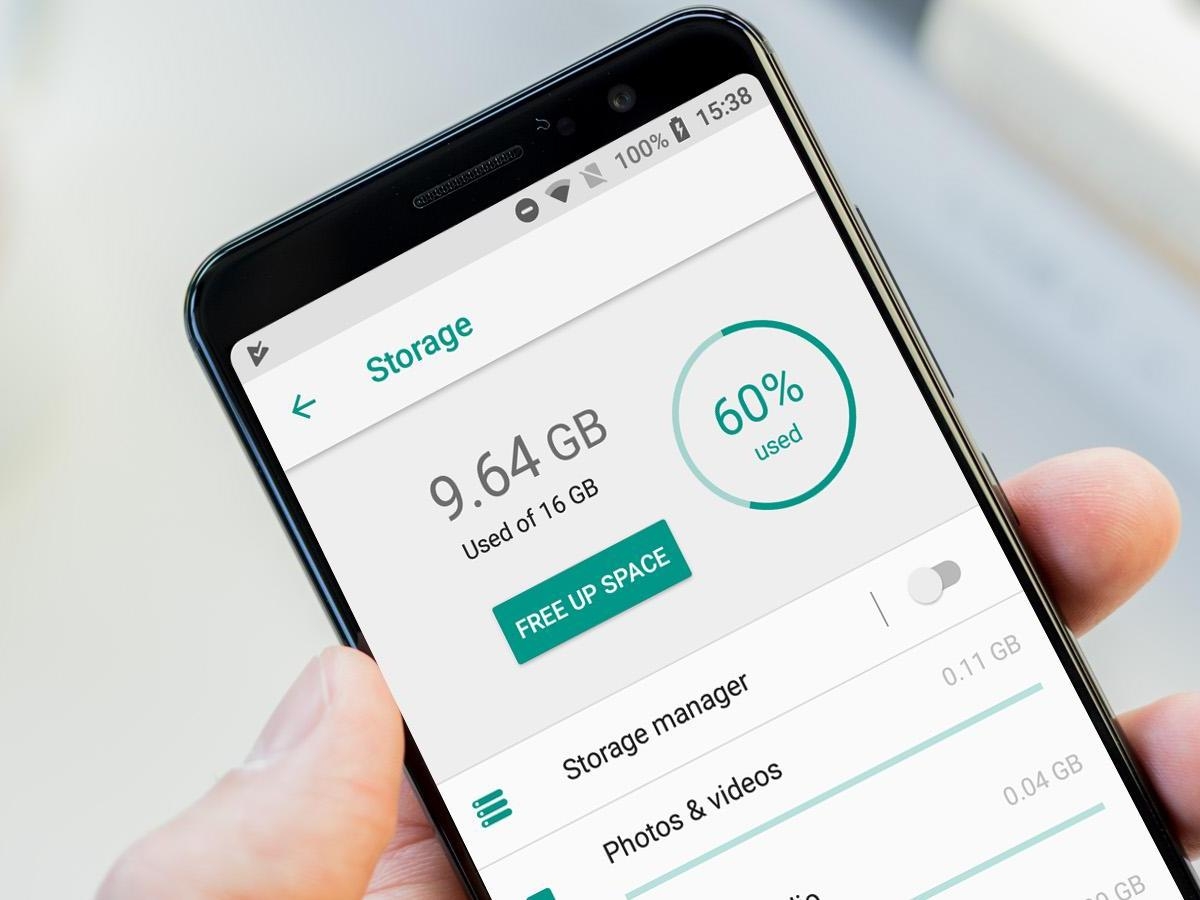
8. Storage
A large part of the smartphone’s storage is taken away from the OS and the apps the device comes pre-installed with.
A 16GB/32GB/64GB or more don’t really come with exact mentioned space. If you like to keep less number of apps on your devices, you can go for 32GB storage.
Users who like to keep larger number of apps can go for 64GB or 128GB variants. You can also buy a 16GB model that supports microSD card as well.
9. Security/extra feature
Most smartphones these days have started coming with extra security features such as fingerprint sensor or even iris sensors. These are not just to lock/unlock a handset but as a password to access certain files, documents or apps.
While a fingerprint sensor can be found in even a Rs 5,000 smartphone, devices with iris scanners are still few. It’s preferable to buy a smartphone with these extra security features since most of us have personal information on our handsets these days.
10. Audio/speaker
Speakers and the quality of audio coming out of it can be an important parameter for those who rely on heavy video streaming or video conferences. If you like entertainment-on-the-go, buy a handset that has front-facing speakers. This gives clear sound even while holding the smartphone in landscape mode.
If you don’t indulge in video streaming or video conferencing much, then a regular handset with bottom-firing speakers should be just fine. Those with speakers placed at the back are also fine.
Smartphones these days have become an integral part of our lives. We use them for communication, taking pictures, saving documents on the cloud Internet browsing and even as a power bank to charge other smartphones.
But then, with the wide variety of smartphones available in the market it is never easy to decide which one to pick it is always tough to the one that may suit our needs best.
Here’s a list of things you should consider before you decide to buy your next smartphones.
2. Build quality
Build is all about durability of a smartphones. The entire handset market is largely divided in two types of builds — metal and plastic.
There are some that even have glass coated – panels, but those are very limited. If you are one of those prone to dropping your smartphones, it is advisable to go for a metal or a plastic buit handset.
These can sustain drops from 2 – 3 feet. while glass – based handset are sure to shutter.
3. Display
The size and resolution of display depends on how you use your smartphone. If you often stream videos edit photos or videos, or download and view movies, then a smartphones display ranging from 5-5 inches to 6 -inche full HD or QHD resolution should be good enough for you.
Anything larger than 6- inche display not just makes the handset extra bulky, but also difficult to carry around If you are regular user and largely use the smartphone for cheking emails, chatting and browsing social media apps, than anything from 5 inch to 5.5 inch HD or full- HD display handset is perfect.
The processing power of a smartphone varies from one device to another depending on several factors such as OS version, UI, bloatware and more.
If you are a heavy user who need to edit images/videos/documents online, play heavy games, stream videos or often use apps in split screen mode, then smartphones with Qualcomm Snapdragon 652 or Snapdragon 820/821 should make multitasking fluid for you.
The processing power of a smartphone varies from one device to another depending on several factors such as OS version, UI, bloatware and more.
4. Processor
If you are a heavy user who need to edit images/videos/documents online, play heavy games, stream videos or often use apps in split screen mode, then smartphones with Qualcomm Snapdragon 652 or Snapdragon 820/821 should make multitasking fluid for you.
The processing power of a smartphone varies from one device to another depending on several factors such as OS version, UI, bloatware and more.
If you are a heavy user who need to edit images/videos/documents online, play heavy games, stream videos or often use apps in split screen mode, then smartphones with Qualcomm Snapdragon 652 or Snapdragon 820/821 should make multitasking fluid for you.
Light users will be happy with handsets that come with MediaTek processors.
5. Camera
Just having higher number of megapixels does not mean that the smartphone camera is better. Several specifications such as camera aperture, ISO levels, pixel size, autofocus and more are essential as well. A 16MP rear camera does not necessarily be better than a 12MP camera. Same theory goes for the front-facing camera.
Higher number of pixels mean that the size of the image is bigger, which becomes more sharper when seen on a small screen. A photographer enthusiast might want a camera with 12 or 16MP sensor under f/2.0 or lower aperture for speedy shots even in low lights. A casual shooter can go by even with an 8MP 0r 12MP camera with f/2.0-f/2.2 aperture.




 Tech & Science Info